
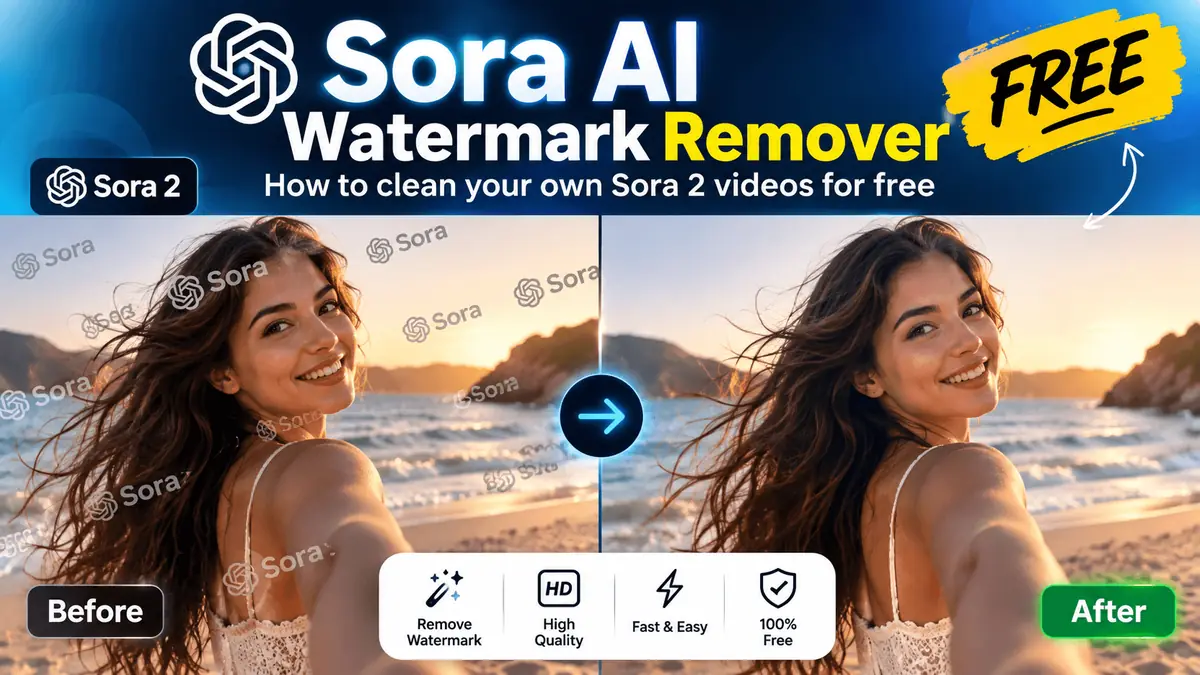
If you create videos with OpenAI's Sora, you have seen the small Sora logo on your downloads. A Sora AI watermark remover clears that visible logo from your own clips so you can use them in edits, presentations or social posts. Below you will find the key facts first, then a clear answer to how to remove Sora AI watermark marks step by step, for free, in your browser.
Sora 2 watermark at a glance
| Question | Answer |
|---|---|
| What does it look like? | A small cloud-style logo with the word "Sora" |
| Does it stay in one place? | No. By default the visible Sora watermark moves around the frame during the video |
| Is there also an invisible signal? | Yes. OpenAI says Sora videos carry C2PA provenance metadata (Content Credentials) in addition to the visible mark |
| Official watermark-free option? | Some paid plans may allow downloads without the visible mark. Check OpenAI's current help pages for your plan |
| Free way to clean your own video | Imaginoa Sora watermark remover, which runs in your browser with no upload |
| Formats | MP4, MOV or WebM in; MP4 out on most browsers (WebM on a few) |
| Sound | Kept |
No sign-up, no upload, works on phone and computer.
Ways to remove the Sora watermark, compared
| Method | Handles the moving logo? | Picture quality | Privacy | Cost |
|---|---|---|---|---|
| Imaginoa (browser, per-frame) | Yes, learns each position and checks every frame | Sharp; only the logo area changes | Video never leaves your device | Free |
| Cloud AI inpainting services | Usually | Good, but the area is regenerated | Video is uploaded | Often credits or per-video fees |
| Static blur or "delogo" filter | No, only one fixed spot | Visible smudge | Local | Free |
| Cropping | No, the logo moves across the frame | Loses a large part of the picture | Local | Free |
| Official watermark-free export | Not needed | Best | Within Sora | Depends on your plan |
How to remove Sora AI watermark (step by step)
- Download your original video from Sora. Avoid screen recordings, which lower quality and add borders.
- Open the Sora watermark remover in Chrome, Edge or Safari (iPhone: iOS 16.4 or newer).
- Add the file. The status shows "Scanning the video…" and then "Looking for moving watermarks…".
- Check the boxes. Each spot where the logo appears gets a box labelled "Moving watermark".
- Preview. Drag the timeline to a few moments and hold "Hold to see original" to compare.
- Fix anything missed. Move the timeline to where the logo is visible, tap "Draw area" and drag a snug box around the whole logo, including the icon.
- Save. Tap "Remove watermark & save video". On a phone, "Save video" opens your share menu so you can save it to your gallery.
| Video | Typical time to find the logo* | Typical time to save* |
|---|---|---|
| 5–10 second clip, 720p | 10–25 seconds | A few seconds |
| 10–20 second clip, 1080p | 20–40 seconds | Around the clip length |
*Rough estimates for a laptop, based on our tests with short sample clips. Phones are usually slower, and times vary with the video.
Why Sora 2 needs a special AI watermark remover
Most free tools assume a watermark stays in one corner for the whole video. A Sora 2 AI watermark remover has to deal with a logo that jumps to different spots. A fixed blur either misses the logo when it moves, or smudges parts of the picture where the logo has already left.
Imaginoa handles this in three stages:
- Search in short stretches. The video is scanned in overlapping windows of a few seconds, so a logo that sits in one spot for a short time is still found.
- Learn each position. For every spot, the tool learns the logo's exact shape, transparency and colour from the frames where it appears.
- Check every frame. Before cleaning a frame, it confirms the logo is really there, so nothing is changed where the logo is absent.
In our test clip, where a Sora-style logo jumped between three spots, the difference from the clean original in the logo areas dropped from 13.4 to 3.3 (on a 0–255 scale; normal video compression was about 2.8), and no pixels were changed in frames where the logo had moved away.
AI Sora watermark remover free: what you get
| Feature | Imaginoa (free) |
|---|---|
| Price and sign-up | Free, no account |
| Upload | None; processing happens in your browser |
| Moving Sora logo | Yes |
| Manual selection | Yes, "Draw area" |
| Audio | Kept |
| Phones | Android (Chrome) and iPhone (Safari, iOS 16.4+) |
| Best for | Short clips you created |
Because nothing runs on a server, an AI Sora watermark remover like this costs nothing to run, which is why it can stay free without credits or limits.
Is it an AI-powered watermark remover?
Many sites call themselves an AI powered watermark remover. Most of them upload your video and use a generative model to paint over the logo, which invents new pixels. Imaginoa takes a different route: it measures how the see-through logo was blended into each frame and reverses that blend, and rebuilds only the solid parts from the surrounding texture. The result keeps the real detail underneath wherever it can, and your file never leaves your device.
Best Sora watermark remover: how to choose
The best Sora watermark remover depends on what matters most to you. Use this checklist:
| Check | Why it matters |
|---|---|
| Handles a moving logo | The Sora 2 mark changes position; a fixed-spot tool leaves marks or smudges |
| No blur or smear | A blurred patch is as noticeable as the logo itself |
| Privacy | Browser-based tools never receive your file; cloud tools do |
| Keeps audio and resolution | You should not have to fix the sound afterwards |
| Manual fallback | Useful when a logo is missed on a dark or busy background |
| Clear limits | Honest tools tell you what they do not remove |
If you are on a plan that offers official watermark-free downloads, that is always the cleanest option.
Sora video downloader without watermark: what is actually possible
People often search for a Sora video downloader without watermark. Imaginoa is not a downloader, and it does not fetch videos from Sora or anyone's profile. Your honest options are:
- Official export: if your plan allows downloads without the visible mark, use that.
- Your own downloaded video: download it normally, then clean it with the Sora watermark remover.
- Other people's videos: do not remove their watermark or repost them without permission.
Baixar vídeo Sora 2 sem marca d'água: o que é possível
Muita gente procura como baixar vídeo Sora 2 sem marca d'água ou baixar vídeo Sora sem marca d'água. Não existe um "baixador" mágico. A forma oficial é exportar pelo próprio Sora, se o seu plano permitir downloads sem a marca. Se o seu vídeo já tem a marca, você pode removê-la de vídeos que você mesmo criou, direto no navegador e sem enviar o arquivo:
- Baixe o seu vídeo original do Sora.
- Abra o removedor de marca d'água do Sora.
- Adicione o arquivo e aguarde as caixas "Moving watermark".
- Toque em "Remove watermark & save video" para salvar o vídeo limpo, com o áudio original.
Use apenas em vídeos que você criou ou tem permissão para editar.
What stays in the video (and what does not)
- Visible logo: removed from the frames.
- File metadata: the saved video is a new file, so metadata such as C2PA Content Credentials from the original download is not carried over.
- OpenAI's own tracing: OpenAI has said it keeps internal tools that can trace videos back to Sora, and nothing on this page changes that.
Removing the logo does not change the fact that the video is AI-generated. Be open about AI video where your audience, client or platform expects it, and follow Sora's terms.
Watermark remover for other AI videos
The same video watermark remover works on other fixed or moving marks in your own videos, including Veo and Grok. For images, use the Gemini watermark remover.
Tips for the cleanest result
| Situation | What to do |
|---|---|
| Logo found in some spots only | Move the timeline to the missed spot and use "Draw area" |
| Faint outline around letters | Raise "Edge cleanup" a little |
| Slightly dark shape where the logo was | Lower "Removal strength" a little |
| Long video on a phone | Trim it to the part you need first, or use a computer |
| Screen recording instead of a download | Use the original download for a sharper result |
Summary
A good Sora AI watermark remover has to follow a logo that moves, avoid blur, and respect your privacy. Imaginoa does this for free in your browser: it finds each position of the Sora 2 logo, cleans only the frames where it appears, and keeps your audio. Use it on videos you created, check a few moments before saving, and be open that the result is AI-generated.
Free Sora AI watermark remover, no upload.
FAQ
What is the best free Sora AI watermark remover?
Look for a tool that follows the moving Sora 2 logo, avoids blur and keeps your video private. Imaginoa does all three in your browser for free.
How do I remove the Sora AI watermark on my phone?
Open the Sora watermark remover in Chrome (Android) or Safari (iPhone, iOS 16.4+), add your video, wait for the "Moving watermark" boxes, then tap "Remove watermark & save video".
Does a Sora 2 AI watermark remover work when the logo moves?
Imaginoa does. It learns each position separately and only cleans frames where the logo is present.
Is there a Sora video downloader without watermark?
Imaginoa is not a downloader. Use Sora's official export if your plan allows watermark-free downloads, or clean your own downloaded video.
Is Imaginoa an AI-powered watermark remover?
It does not use a generative model to invent pixels. It reverses how the logo was blended in and rebuilds solid parts from nearby texture.
Will the video be uploaded?
No. The whole process runs on your own device.
Is the audio kept?
Yes, the original sound is kept in the saved video.
Can I remove the watermark from other people's Sora videos?
No. Only edit videos you created or have permission to change.