
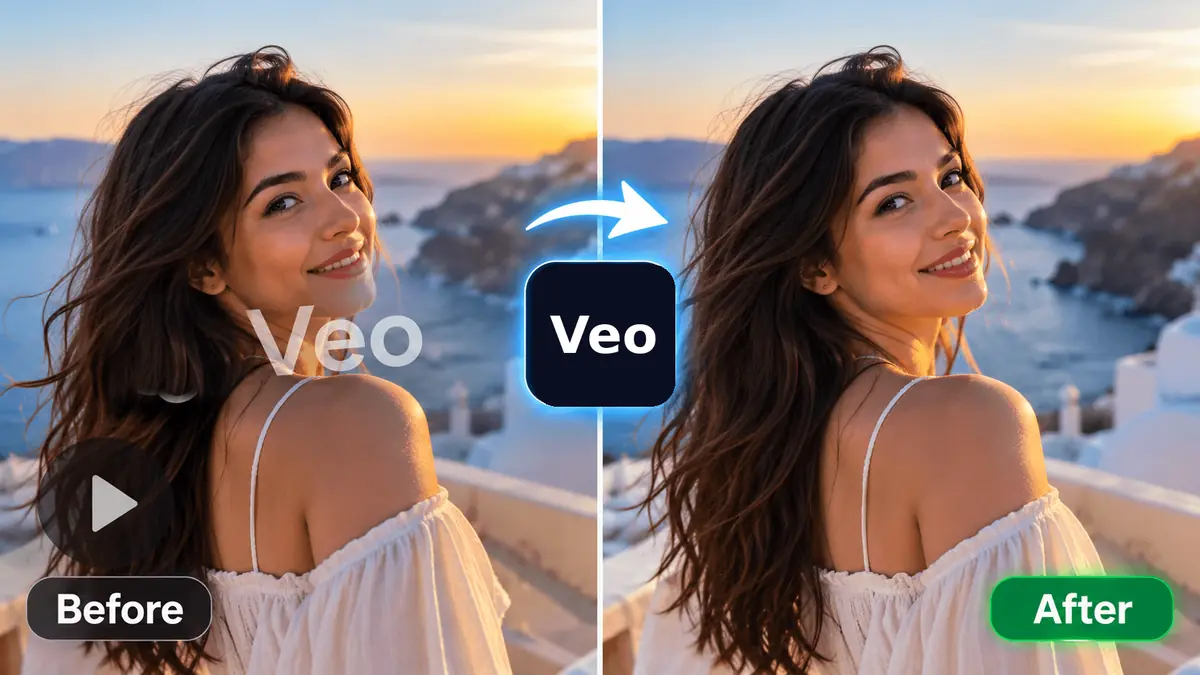
Need to remove watermark from video clips you made with Veo 3 AI? This guide shows the fastest free method, what it can and cannot clear, and how to avoid the blurry patch that most tools leave behind. Everything runs in your browser, so your video is never uploaded.
Quick answer
| Question | Answer |
|---|---|
| Tool | Imaginoa video watermark remover (free, no account) |
| Works on | Android (Chrome), iPhone (Safari, iOS 16.4+), Windows, Mac |
| Formats | MP4, MOV, WebM in; MP4 out on most browsers |
| Time | Roughly 10–25 seconds to find the mark, then about the length of the clip to save |
| Audio | Kept |
| Upload | None; the video stays on your device |
| Cost | Free, no credits or limits |
Free, private, no sign-up.
Where the Veo 3 mark comes from
Google puts two different marks on Veo 3 AI videos, and only one of them can be cleared from the picture.
| Mark | Can you see it? | Where | Can it be removed? |
|---|---|---|---|
| Visible "Veo" mark | Yes | Usually the lower-right corner, and not always in every scene | Yes, from your own videos |
| SynthID | No | Hidden throughout the video | No, and this tool does not try |
Google has said that all Veo outputs carry SynthID, while the visible mark appears on most videos, with an exception for Ultra members generating inside Flow. Plans and rules change, so check Google's current help pages for your own account. If your plan offers watermark-free exports, that is always the cleanest route.
How to remove watermark from video, step by step
The steps below are how to remove watermark from video files on both a phone and a computer.
- Save the original video. Download it from Flow or the Gemini app rather than screen recording it.
- Open the video watermark remover. Nothing to install.
- Add your video. Drop it in on a computer, or tap to choose it on a phone.
- Wait for the green box. The tool scans the clip and marks the watermark it finds.
- Check it. Drag the timeline and hold "Hold to see original" to compare a few moments.
- Save. Tap "Remove watermark & save video". On a phone, "Save video" opens your share menu so the clean clip goes to your gallery.
If the mark is not found automatically, tap Draw area and drag a snug box around it. That is also how you delete watermark from video clips where the camera barely moves, which gives automatic detection less to work with.
Free watermark remover from video: what you actually get
A free watermark remover from video usually comes with catches: credits, sign-ups, export limits or a second watermark added by the tool itself. Here is what this one does.
| Feature | Imaginoa |
|---|---|
| Price | Free, unlimited, no account |
| Adds its own watermark? | No |
| Upload required? | No, processing is on your device |
| Resolution | Kept, up to what your device can handle |
| Audio | Kept |
| Moving marks | Supported, each position handled separately |
| Manual selection | Yes, "Draw area" |
| Best for | Short clips you created |
People also search for a way to free remove watermark from video on a phone. That works here too: the same page runs in mobile browsers, and saving goes through your normal share menu.
Delete watermark from video without blur
Most free options simply blur or pixelate the corner. That replaces one distraction with another. This tool works differently:
- It learns the mark. A watermark keeps identical edges while the picture moves underneath, which is how the exact letter shapes are found.
- It reverses the blend. See-through marks are removed by undoing the way they were mixed into each frame, so the real picture underneath returns.
- It rebuilds solid parts. Where a logo hides the video completely, the spot is rebuilt from the colour and texture around it rather than smudged.
In our tests on 1080p clips carrying a small semi-transparent Veo-style mark, the difference from the clean original dropped from about 22 to under 3 on a 0–255 scale, which is close to ordinary video compression.
Other methods compared
| Method | Result | Privacy | Cost |
|---|---|---|---|
| Imaginoa (browser) | Sharp; only the mark area changes | Nothing uploaded | Free |
| Cloud AI removers | Good, but the area is regenerated | Video uploaded | Credits or subscription |
| Blur or "delogo" filter | Visible smudge | Local | Free |
| Cropping the corner | Loses part of the frame and fails if the mark moves | Local | Free |
| Covering with a sticker | Obvious, and hides your content | Local | Free |
| Official watermark-free export | Best possible | Within the AI tool | Depends on your plan |
Problems and fixes
| Problem | Why | Fix |
|---|---|---|
| "No watermark found" | Still camera, or a very small mark | Tap "Draw area" and box the mark yourself |
| Faint outline left | Compressed edge pixels | Raise "Edge cleanup" and save again |
| Slightly dark shape | Removal a little too strong | Lower "Removal strength" |
| Mark returns later in the clip | The mark moved to another spot | Move the timeline there and add a second area |
| Slow on a phone | Long or 4K video | Trim the clip first, or use a computer |
Other video and image marks
The same tool handles other fixed or moving marks in your own videos, including Sora and Grok logos. For photos, use the Gemini watermark remover or the Nano Banana remover.
Phone or computer: which is better?
| Phone | Computer | |
|---|---|---|
| Setup | Open the page in Chrome or Safari | Open the page in Chrome, Edge or Safari |
| Speed | Slower, fine for short clips | Faster, better for long or 4K clips |
| Saving | Share menu, straight to your gallery | Normal download folder |
| Best for | Reels and shorts you post from the phone | Batches, editing projects, longer videos |
When is it okay to remove a watermark?
- Your own AI videos: generally fine for personal or client work, as long as you follow the AI tool's terms and stay open about AI use.
- Someone else's video: not okay. A watermark there marks ownership or licensing.
- Stock footage and paid-editor exports: not okay. Those marks exist because the clip has not been licensed or the export was made on a free plan.
If you are unsure, check the terms of the service that made the video.
What stays in the file
- SynthID stays. It is invisible, spread through the video, and built to survive ordinary edits. Nothing here removes it.
- Your video is still AI-generated. Removing a logo does not change that, so be open about AI video where your audience, client or platform expects it.
- Rights matter. Only edit videos you created or have permission to change, and follow the terms of the AI tool you used.
Tips for the best result
| Tip | Why it helps |
|---|---|
| Use the original download | Screen recordings lose detail and add borders |
| Remove the mark before editing | Filters and re-compression make the mark harder to reverse |
| Check three moments before saving | Marks can appear only in some scenes |
| Keep clips short for phones | Saving takes roughly the length of the clip |
Summary
To remove watermark from video files you created with Veo 3 AI, download the original, open the free browser tool, let it find the mark, check a few frames and save. The picture stays sharp because the mark is reversed rather than blurred, the sound is kept, and nothing is uploaded. The invisible SynthID signal stays in the file, so keep being open about AI-generated video.
Free watermark remover from video, straight in your browser.
FAQ
How do I remove a watermark from a video for free?
Open the Imaginoa video watermark remover in your browser, add your video, let it find the mark, then save. There is no sign-up, no credit system and nothing is uploaded.
Can I remove watermark from video on my phone?
Yes. It works in Chrome on Android and Safari on iPhone (iOS 16.4 or newer), and "Save video" opens your share menu.
How do I delete a watermark from a video without blurring it?
This tool reverses see-through marks and rebuilds solid parts from nearby texture, so the area stays sharp instead of being smudged.
Does it remove the Veo 3 AI watermark?
It removes the visible "Veo" mark from videos you created. The invisible SynthID signal is not removed.
Will the video quality drop?
Only the small mark area changes. The video is re-encoded once at high quality, and the audio is kept.
Is my video uploaded to a server?
No. The whole process happens on your own device.
What if the watermark moves during the video?
Each position is handled separately, and frames without the mark are left untouched.
Can I remove a watermark from someone else's video?
No. Only edit videos you created or have permission to change.